Every time I create an IIS website, I do some steps, which I
consider as best practice for creating any IIS website for better
performance, maintainability, and scalability. Here’ re the things
I do:
Create a separate application pool for each web
application
I always create separate app pool for each web app because I can
select different schedule for app pool recycle. Some heavy traffic
websites have long recycle schedule where low traffic websites have
short recycle schedule to save memory. Moreover, I can choose
different number of processes served by the app pool. Applications
that are made for web garden mode can benefit from multiple process
where applications that use in-process session, in memory cache
needs to have single process serving the app pool. Hosting all my
application under the DefaultAppPool does not give me the
flexibility to control these per site.
The more app pool you create, the more ASP.NET threads you make
available to your application. Each w3wp.exe has it’s own
thread pool. So, if some application is congesting particular
w3wp.exe process, other applications can run happily on
their separate w3wp.exe instance, running under separate app
pool. Each app pool hosts its own w3wp.exe instance.
So, my rule of thumb: Always create new app pool for new web
applications and name the app pool based on the site’s domain name
or some internal name that makes sense. For example, if you are
creating a new website alzabir.com, name the app pool alzabir.com
to easily identify it.
Another best practice: Disable the DefaultAppPool so that
you don’t mistakenly keep adding sites to
DefaultAppPool.
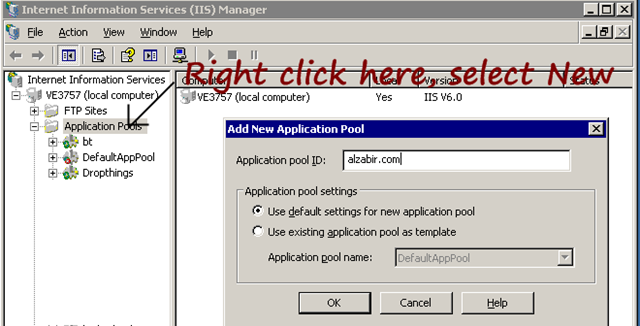
First you create a new application pool. Then you create a new
Website or Virtual Directory, go to Properties -> Home Directory
tab -> Select the new app pool.
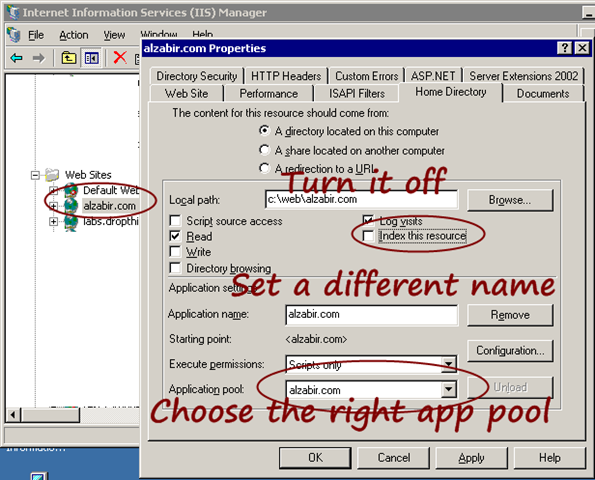
Customize Website properties for performance,
scalability and maintainability
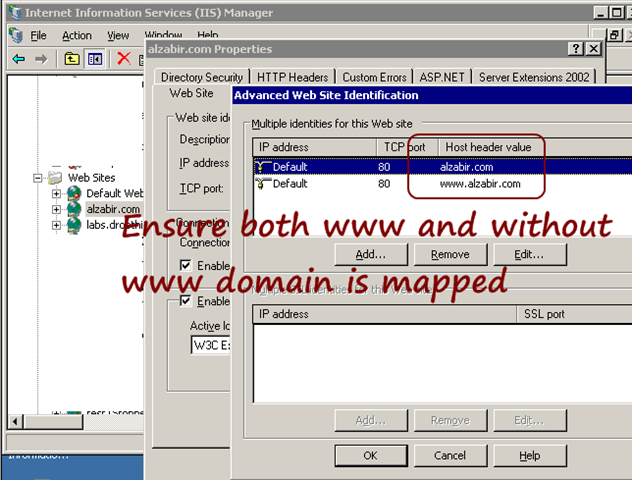
First you map the right host headers to your website. In order
to do this, go to WebSite tab and click on “Advanced” button. Add
mapping for both domain.com and www.domain.com. Most of the time,
people forget to map the domain.com. Thus many visitors skip typing
the www prefix and get no page served.
Next turn on some log entries:
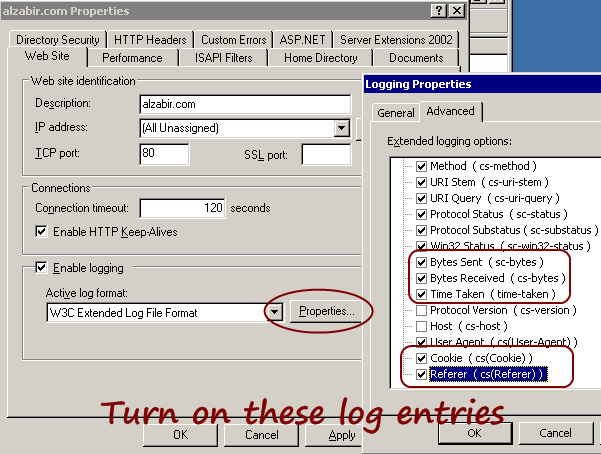
These are very handy for analysis. If you want to measure your
bandwidth consumption for specific sites, you need the Bytes Sent.
If you want to measure the execution time of different pages and
find out the slow running pages, you need Time Taken. If you want
to measure unique and returning visitors, you need the Cookie. If
you need to know who is sending you most traffic – search engines
or some websites, you need the Referer. Once these entries are
turned on, you can use variety of Log Analysis tools to do the
analysis. For example, open source AWStats.
But if you are using Google Analytics or something else, you
should have these turned off, especially the Cookie and Referer
because they take quite some space on the log. If you are using
ASP.NET Forms Authentication, the gigantic cookie coming with every
request will produce gigabytes of logs per week if you have a
medium traffic website.
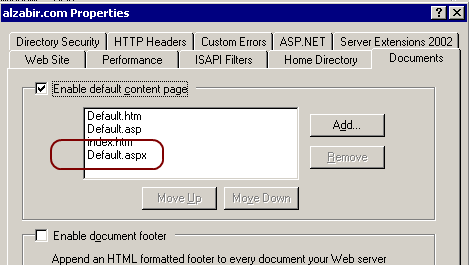
This is kinda no brainer. I add Default.aspx as the default
content page so that, when visitors hit the site without any .aspx
page name, e.g. alzabir.com, they get the default.aspx served.
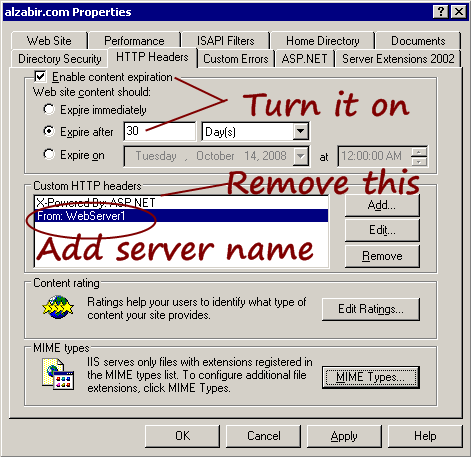
Things I do here:
- Turn on Content Expiration. This makes static files remain in
browser cache for 30 days and browser serves the files from its own
cache instead of hitting the server. As a result, when your users
revisit, they don’t download all the static files like images,
javascripts, css files again and again. This one setting
significantly improves your site’s performance. - Remove the X-Powered-By: ASP.NET header. You really
don’t need it unless you want to attach Visual Studio Remote
Debugger to your IIS. Otherwise, it’s just sending 21 bytes on
every response. - Add “From” header and set the server name. I do this on each
webserver and specify different names on each box. It’s handy to
see from which servers requests are being served. When you are
trying to troubleshoot load balancing issues, it comes handy to see
if a particular server is sending requests.
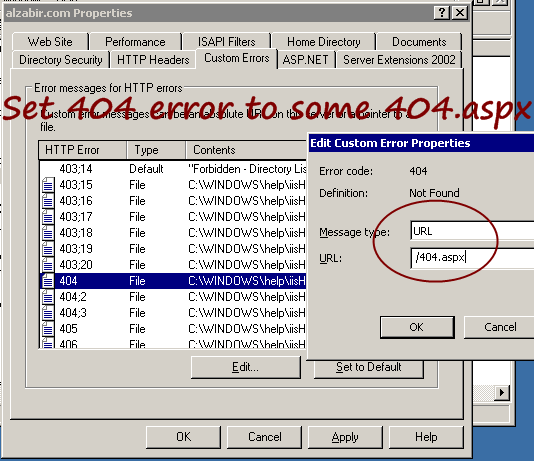
I set the 404 handler to some ASPX so that I can show some
custom error message. There’s a 404.aspx which shows some nice
friendly message and suggests some other pages that user can visit.
However, another reason to use this custom mapping is to serve
extensionless URL from IIS.
Read this blog post for details.
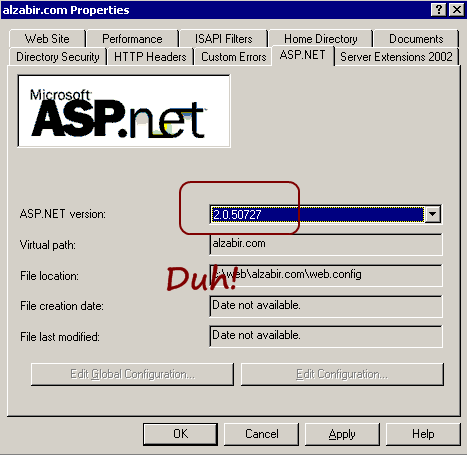
Make sure to set ASP.NET 2.0 for your ASP.NET 2.0, 3.0 and 3.5
websites.
Finally, you must, I repeat you “MUST”
turn on IIS 6.0 gzip compression. This turns on the Volkswagen
V8 engine that is built into IIS to make your site screaming
fast.

this is a very nicely build checklist for starters and they will find it quite handy at times to come.
thanks.
I think that enabling content expiration without explanation may be dangerous for thouse who don't know about client-caching.
Great step by step guide! I follow exactly the same steps except i also disable the logging feature as i use Google Analytics for my stats.
To streamline the process, I normally create a new website from file with all the preset settings.
Cheers
Caleb Tan
http://calebtan.com
Very useful guide. Thanks.
Do you have any recommendation for the 'Identity' property for the App Pool?
Do you create a new user for each Pool/site?
What about the Authentication method?
Thanks in advanced
When we define Session Null check conditionin Master Page cs file, it does not work for main aspx page load and we receive exceptions if session specific information is tried for retrieval; I was under the impression that Master page session null condition will take care of proper data generation; but it does not happen and we need to manage the session Null condition in Main Page as well, which is some times a PAIN.
Regards
RS
http://www.healthsprint.com/
this is a excellent doc for me…
thank you so much
Hi,
Are you sure about the new application pool for each new application? wont it increase the memory requirement?
It is a very nice article. I never followed these steps in my office. But now definitely I'll follow all these. Thanx a lot
This is really cool..thanks.
Just curious, why should i turn of the “Index this resource” property?
Very good, thank you. I also would like to know why turn off 'Index this resource'? thanks.
very very useful. Thanks a lot.
Hi,
Excellent Information, Just one question, Can i create a new application pool and set the new pool for an existing web site?
Thanx
This is really good stuff and better performance with these changes to hosting a site
Hey Omar
Superb cheklist with several issues I hadn't thought of, but for sure will incorporate in future site setups.
About the default content page I think I read somewhere a long time ago (maybe in the MS Press “Developing web applications” book for the 70-315 exam) that you should put Default.aspx in top of the list to save some search time.
Whether this is true or not I have this in my website creation practice. I add default.aspx, moves it to the top and delete default.asp and index.htm and also default.htm if I don't use the VS publishing feature (that feature puts a default.htm with a maintenance message on while files are being published).
Thanks for sharing 🙂
Hi
I have the web load balancing and followed
you document on HHTP header by add server name
on it. I would like to indentify which web server are respond for the request, where do I look to find name of the webserver was serve the client request.
Thanks
Using dedicated application for each of the website on the server is disastrous for web servers that have limited amount of RAM. One busy website could quickly run our of resources while the other not-so-busy websites are keeping their resources idle.
where do I look to find name of the webserver was serve the client request.
—
You would find it in on the client browser side by looking at the headers returned from the server. Plenty of plugins for FF and IE will show you this.
I can't find ASP.NET tab on my website properties??!
Please help…
husam_aldib@yahoo.com
In my opinion it already was discussed
Thank you for submitting this cool story – Trackback from PimpThisBlog.com
I described the reason you should turn “Index this resource” off, in this stackoverflow question.
http://stackoverflow.com/questions/176031/when-do-you-set-index-this-resource-on-iis6/2720190#2720190
When we have had problems with one of our apps we have been stopping and starting the app pool. I believe this kicks all people off. Should we be using Recycling which from what I read tonight does not kick people off and does a smooth transition to a new worker process. Also, do you have any recommendations for how long we should allow for a worker process to finish and hand off work to new worker process? I think we are using 90 seconds. Feedback appreciated.
App Pool recycle does handle the graceful transition of requests, but I have seen it fail for many cases and especially make requests timeout due to the high warmup time of the newly spawned worker process. I always use load balancer and take the defective server out of load balancer, do the recycle and then put it back. This way, the impact to end users is minimal.
From value in the response header is not valid and causing the .net HttpClient to throw an exception.
According to http://www.w3.org/Protocols/rfc2616/rfc2616-sec14.html
The From request-header field, shoul contain an Internet e-mail address.
We should rename the custom header to something else to avoid conflicts, e.g.FromServer: FARMSRV04